Brand Pages
Brand pages are essentially a category page filtered to one brand. They have the same layout (sidebar + grid), with the brand name and (if uploaded) the brand logo shown in the header.
The single-brand page
URL: /brands/<brand-slug>. Edit in Catalog → Brands → (brand):
| Field | Effect |
|---|---|
| Name | H1 + breadcrumb |
| Brand image | Logo shown in the brand page header and the homepage brands carousel. The footer Brands column lists brand names as text links only — it does not display logos. |
| Page title | <title> tag |
| Meta description | <meta description> |
The brand header shows the brand name (H1) and, if the brand has an Image uploaded, that logo above the product grid. To add extra content (e.g. a promotional banner) above the listing, use the widget region directly below the header.
Theme Editor → Products → Number of products displayed → Brand page — default 12.
If a brand has no products assigned, the page shows the message "There are no products listed under this brand."
All brands index (A–Z list)
URL: /brands. Set the default layout in Theme Editor → Products → Brands page default layout:
| Layout | Description |
|---|---|
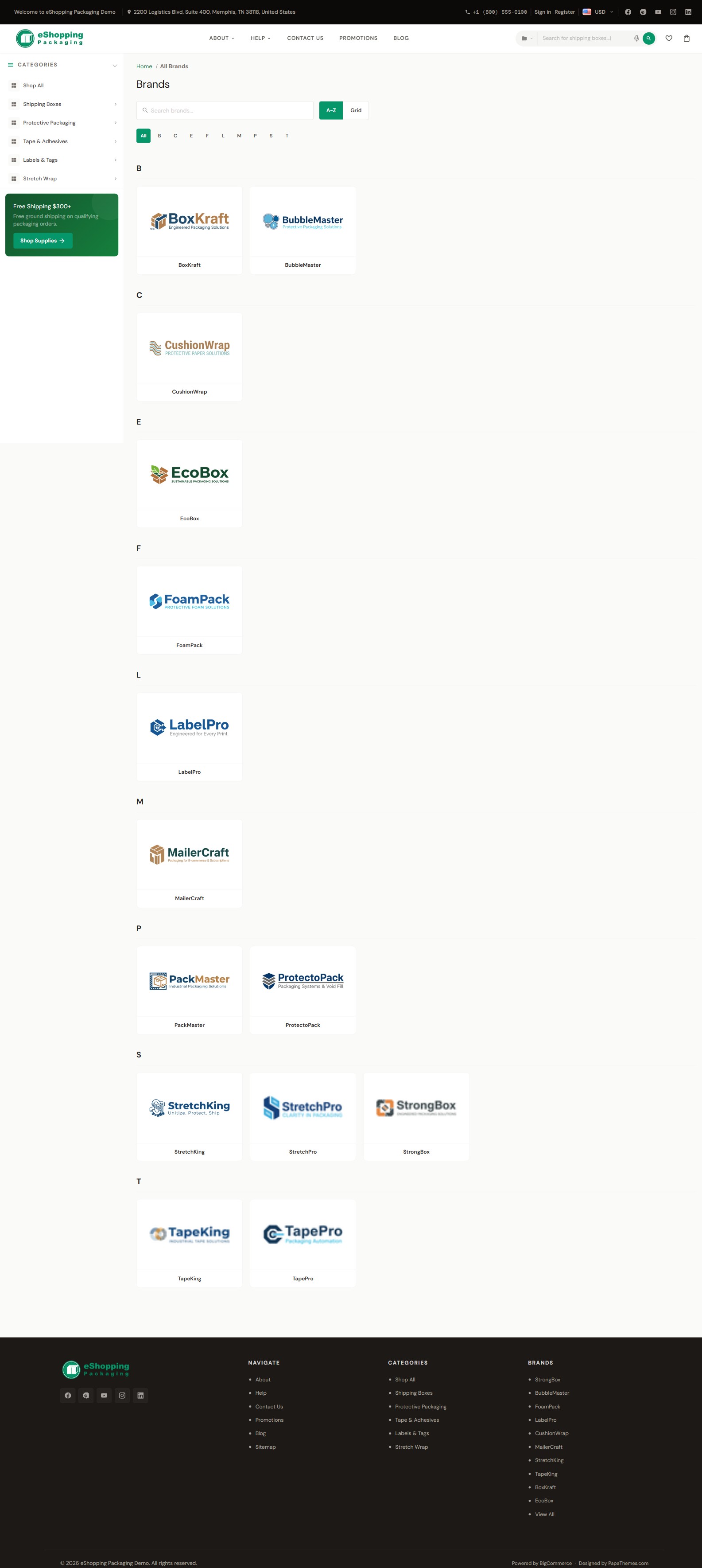
| A-Z (alphabetical groups) (default) | A letter-filter bar (an All button plus A–Z buttons) above a flat grid of brand logos; clicking a letter scrolls the page to the brand group for that letter |
| Grid (flat grid) | A flat grid of brand logos with no letter filtering |
Regardless of the default layout, the all-brands page also gives shoppers:
- A live search box to filter brands by name as they type. When the search matches no brands, the page shows the message "No brands found matching your search."
- An A-Z / Grid view toggle they can switch at any time at runtime (independent of the default-layout admin setting above).
Brands without an uploaded image display a letter-avatar placeholder instead of a logo.
Brand strip in footer
See Footer.
Brands carousel on home page
See Home overview. Configure count: Theme Editor → eShopping Theme → Homepage Brands Limit.
Recommended setup
- Upload transparent PNG brand logos at a consistent aspect ratio so they line up neatly in the grid and carousel. The theme ships set to render brand images at a custom 300 × 200 reference size (the value under Theme Editor → Products → Brand image in gallery view); its built-in Optimized for theme preset is 190 × 250. To change the size brands actually render at, adjust that Brand image in gallery view setting.
- Fill in Page title and Meta description for SEO.