Step 3 — Import Demo Products & Widgets
This is the step that makes your store look like our demo. You import two kinds of content with our free tool — BC Tools — and the storefront updates in minutes. No coding, no spreadsheets.
- Products — all demo products (with images, variants, custom fields, descriptions), plus the categories and brands that go with them
- Widget content — the home-page marketing sections and the footer brand/tagline block
The sample demo data includes the categories and brands used by the products, so your catalog structure comes in alongside the products (see the note in 3.2).
The tool: BC Tools
Open https://bc-tools.papathemes.com in a new tab.
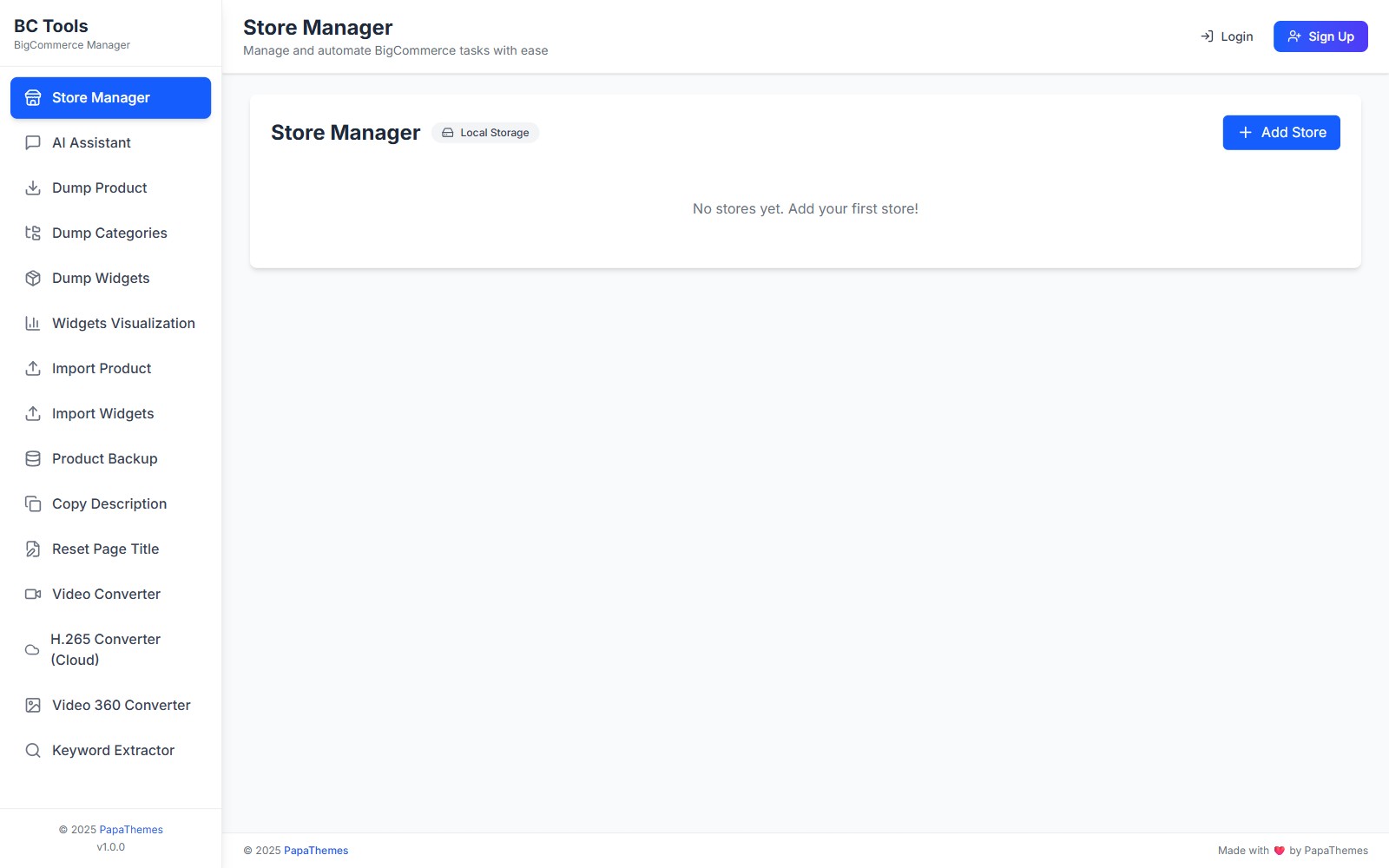
The tool is 100% browser-based — it talks to your store directly via the BigCommerce API. We never see or store your credentials.
3.1 — Connect your store
- Open the store-management area in the left menu.
- Add a new store and paste in:
- Store hash — the part of the URL between
stores/and/managein your admin panel (e.g.abcd1234). - API Access Token — see How to create an API account below.
- Store hash — the part of the URL between
- Save. The store now appears in the dropdown at the top of every BC Tools page.
Creating an API Account
If you don't already have an API token:
- In BigCommerce admin go to Settings → API → Store-level API accounts.
- Click Create API account.
- Name it
PapaThemes BC Tools. - Tick the scopes from the checklist in Get Started.
- Click Save — a download will start. Keep that file — it contains the only copy of your
Access Token.
3.2 — Import sample products
- In BC Tools open the product-import area in the left menu.
- Pick your store from the top dropdown.
- Choose one of two import modes:
- Import from the built-in samples — pick the variant matching your demo:
eshopping-industrial,eshopping-autoparts,eshopping-electronics, oreshopping-packaging. - Import from a product JSON file — drag in a
.jsonfile (use a sample product file or your own catalog export).
- Import from the built-in samples — pick the variant matching your demo:
- Start the import.
- The progress bar will tick up. Each demo imports the full demo catalog (around 100 products) along with their images, so this takes a few minutes — longer for large image sets or slower connections.
Categories and brands come with the demo data
The sample demo data includes the categories and brands used by the products, along with each product's custom fields and modifier options. The categories and brands are created if they don't already exist, so your catalog structure is set up alongside the products.
3.3 — Import widget content
The demo widgets populate three areas:
- Home-page marketing sections — five separate sections you can edit individually after import:
- Below the product sliders: Why Choose Us, Customer Reviews, and Resources.
- Below the newsletter: About and Talk to an Expert.
- Footer brand/tagline block — this lives in a global footer region, so it appears site-wide (the same footer tagline shows at the bottom of your home, product, category, cart, and other pages).
- Product-page sections — an FAQ accordion and an info block that appear on every product page.
Your category and cart pages get their main look from the theme itself once it's applied — their body content doesn't rely on imported widgets.
- In BC Tools open the widget-import area in the left menu.
- Pick your store from the top dropdown.
- Enter your Channel ID (the default is
1— only change it if you have multiple storefronts; you can find the channel ID in your BigCommerce admin under your channels list). - Confirm your Channel ID is correct, then continue. The demo marketing widgets use the AI HTML Generator | PapaThemes widget, which is provided by the PapaThemes app — install that app on your store first so the imported widgets render fully.
- Choose one of two import modes:
- Import from the built-in samples — pick
eshopping-industrial,eshopping-autoparts,eshopping-electronics, oreshopping-packaging. - Import from a widgets JSON file — drag in a
.jsonfile (use a sample widgets file or any custom dump).
- Import from the built-in samples — pick
- When the page list appears, leave the defaults selected if you're not sure — they cover everything the demo uses.
- Start the import.
- Open your storefront in a new tab — your five home-page marketing sections (Why Choose Us, Customer Reviews, Resources, About, Talk to an Expert), the product-page FAQ and info sections, and the site-wide footer brand/tagline block should now match the demo. Your category and cart page bodies are styled by the theme itself, so they will already look like the demo once the theme is applied.
Sample JSON downloads
The Quick Import from Samples picker in BC Tools downloads the latest demo JSON automatically — you almost never need the raw files. They're listed below for reference and offline use.
| Variation | Product JSON | Widgets JSON |
|---|---|---|
| Industrial | eshopping-industrial-products.json | eshopping-industrial-widgets.json |
| Auto Parts | eshopping-autoparts-products.json | eshopping-autoparts-widgets.json |
| Electronics | eshopping-electronics-products.json | eshopping-electronics-widgets.json |
| Packaging | eshopping-packaging-products.json | eshopping-packaging-widgets.json |
Sample files are ready to import
Both file types are real BC Tools import files. Drag a Widgets JSON into BC Tools → Import from a widgets JSON file, or a Product JSON into BC Tools → Import from a product JSON file, to import it directly. Each Product JSON holds one fully-featured example product (not the full catalog) — use BC Tools → Import from the built-in samples to load the complete demo catalog.
Troubleshooting
Import says 403 Forbidden
Your API token is missing a scope. Re-create the API account with all scopes in the checklist, then update the token for your store in BC Tools.
Products import but images are broken
If the import fails partway, retry from BC Tools — the importer is idempotent (it skips products that already exist), so re-running it finishes any images that didn't upload the first time. If an image still won't load, upload your own via Catalog → Products → (product) → Images.
Widgets import succeeds but the home page is blank
Make sure you picked the correct Channel ID in step 3. Widgets are stored per-channel. If you imported to Channel 2 but are looking at Channel 1, you won't see them.
I want to remove all the demo data and start over
- In BC Tools use the widget-removal option → pick the channel → confirm.
- In BigCommerce admin, Catalog → Products → select all → Delete.
- Catalog → Categories → delete top-level demo categories.
Next
➡️ Continue with your variant's home-page recipe:
Or learn the general Theme Editor first → Theme Editor tour.