Product Card
The product card is the tile shown in:
- Home page sliders (Featured / Bestselling / New)
- Category and Brand grids
- Search results
- "Related products" on the PDP (when a product has no related products set, the PDP shows the standard product-info tabs instead of a related-products row)
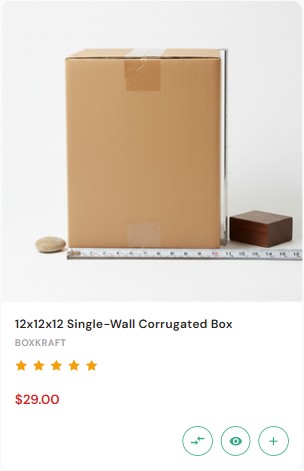
Two card variants
The theme uses two slightly different product cards depending on where they appear:
- Grid card — used on category, brand, and search pages.
- Slider card — used in home page sliders, Products-by-Category, and the PDP "Related products" section.
They order a few elements differently and differ slightly in content (the slider card shows the product SKU, the grid card shows the brand name), and a couple of action-button behaviors differ. Both are described below.
Slider card (home sliders, Products-by-Category, PDP related)
From top to bottom this card shows:
- A Sale badge on products that are on sale. (A Sold out badge can also appear here, but it is off by default — see Sale and sold-out badges.) The badge style/position and colors are set in Theme Editor → Products → Product sale badges.
- The product image.
- The product title.
- The product SKU (when the product has a SKU set), or the brand name (when no SKU is set but a brand exists).
- The star rating and review count (when the product has reviews and ratings are enabled).
- The price — sale price plus the original (struck-through) price when the product is on sale.
- An icon-only action row: Compare, Quick view, and Add to cart (the add-to-cart icon becomes a Choose options link for products that have variants).
Grid card (category, brand, search pages)
This card differs from the slider card in both order and content: it shows the brand name (not the SKU) in the metadata row, and the rating appears above the brand/title rather than below them:
From top to bottom: Sale badge → product image → star rating → brand name → product title → price → action row.
Card action buttons
On category, brand, and search pages the Compare icon is additionally gated by a per-product eligibility flag, so it only appears for products eligible for comparison; on home sliders and the PDP related section it appears for all products when the toggle is on.
The Add to cart icon is always present for purchasable products, and it switches to a Choose options link when the product has variants. On category, brand, and search pages the icon also switches to a Pre-order link for pre-order products. There is a fourth state on these pages too: when a product is purchasable but currently out of stock and has an out-of-stock message set, the cart icon becomes an out-of-stock link that uses that message as its label and links to the product page.
Quick view modal
The Quick-view button opens a streamlined PDP inside a modal — same gallery, variants, qty, and Add-to-Cart. Toggle it in:
Theme Editor → Products → Display settings → Show quickview button on product cards.
Hiding prices from guests
To force users to log in before they can see prices:
Settings → Display → Product settings → Hide product's price from guests? ✅.
Cards then show a Log in for pricing link in place of the price.
Sale and sold-out badges
The theme supports two badge types on cards, both grouped under one heading: Theme Editor → Products → Product sale badges.
- A Sale badge for products that have a sale price. On by default — it shows out of the box.
- A Sold out badge for products that are out of stock. Off by default — the Show product sold-out badges setting starts at None, so nothing appears until you choose a position.
For each badge type, the style and position is the value you pick in its dropdown:
Each option places the badge differently: None hides it, Top left is a corner flag, Diagonal a corner sash, Burst a starburst. The sale badge defaults to Top left; the sold-out badge defaults to None (hidden).
The two dropdowns are Show product sale badges and Show product sold-out badges. Each badge type also has its own color fields — Badge text color, Badge color, and Badge hover color — so the two badge types can be styled independently. You can override the default wording for each type using its label field in the same panel.
Product display style
"Show products in bulk order" is not a generic list/row view of the product cards — it replaces the card grid with the bulk-order table.