Cart Page
The eShopping cart has two surfaces:
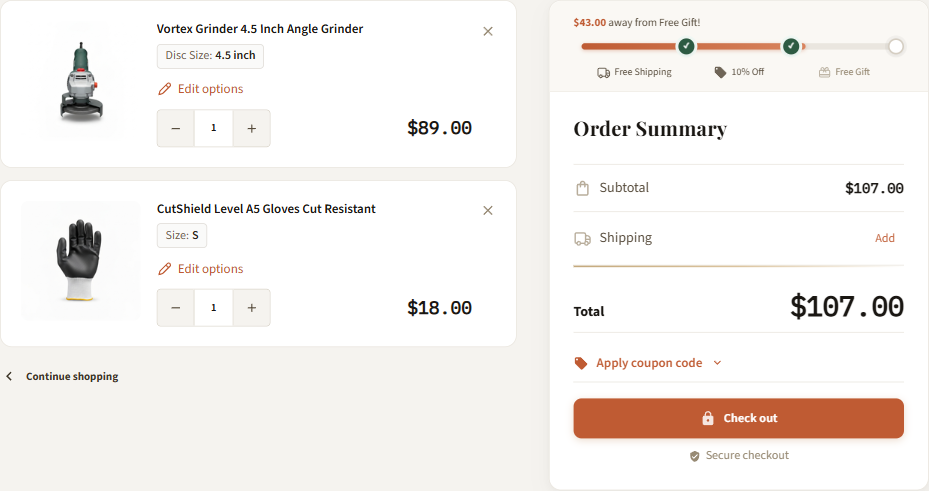
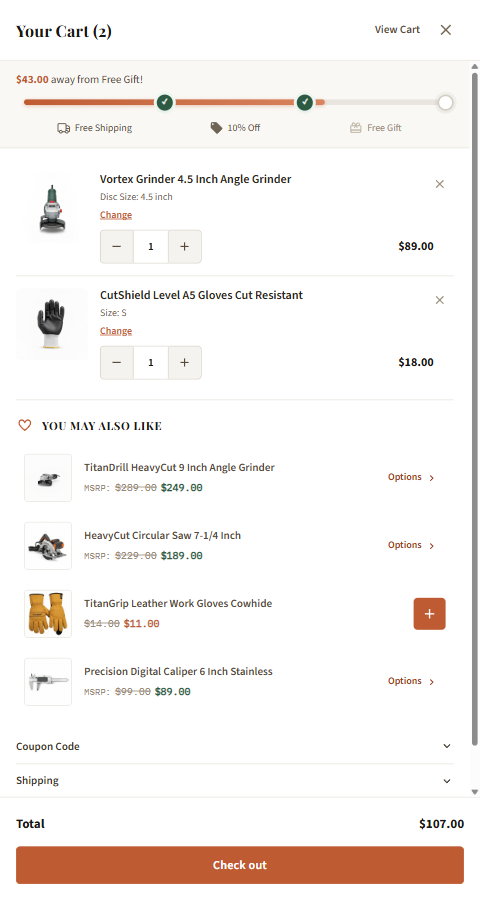
- Cart drawer — a slide-in panel from the right edge that opens after the shopper adds an item to the cart (from the product page, quick view, or product listings). Products with options open quick view first, then the drawer slides in once the item is added.
- Cart page (
/cart.php) — the full-page view when the user clicks View cart.
Both show the same line-items and totals. The cart page also has an order-summary sidebar with the goal bar and a cross-sell section below the items; the cart drawer shows the goal bar and cross-sell too.
Logged-out shoppers
If your store is set to hide prices from guests, the goal bar and the You May Also Like cross-sell are hidden for visitors who are not signed in. They appear once the shopper signs in — or if your store shows prices to guests.
Where these settings live
Every cart setting below sits in one Theme Editor section, eShopping Theme, grouped under its own heading (Cart Goal Bar, Cart Cross-sell, Bulk Order). Open it via Storefront → My Themes → Customize → eShopping Theme. Fields marked force-reload refresh the Theme Editor preview automatically when you change them.
The cart drawer has no settings of its own
The slide-out cart drawer is built into the theme and opens automatically after an add-to-cart. It mirrors the cart page's goal bar and cross-sell, so the two Cart Goal Bar and Cart Cross-sell settings below control both surfaces at once. There is no on/off toggle and no widget region for the drawer.
Cart goal bar
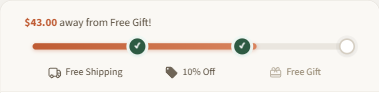
A theme-driven progress bar that rewards customers as their cart subtotal grows. It is multi-tier: you define a series of dollar milestones, and each milestone shows a marker on the bar plus a labelled reward (e.g. free shipping, a discount, a free gift). As the subtotal passes each milestone, that marker is ticked off.
The bar appears at the top of the order-summary sidebar on the cart page and in the cart drawer.
Configure the tiers
— defines the reward milestones on the bar. Field id:
eshopping-cart-goal-items. Format: comma-separated tiers, eachamount|icon|label(icon optional →amount|label). Default:50|shipping|Free Shipping,100|discount|10% Off,150|gift|Free Gift. (force-reload)
Enter a comma-separated list of tiers. Each tier is three parts joined by a pipe (|):
- amount — the cart subtotal (in your store currency) that unlocks this tier.
- icon — an optional icon keyword (see below).
- label — the reward text shown under the marker.
Example (the Industrial demo default):
This renders three milestones at $50, $100, and $150. The bar fills toward the highest tier and ticks off each marker as the subtotal reaches it.
Supported icon keywords
shipping, discount, gift, check, bag, star. The icon part is optional — if you omit it, write the tier as amount|label (two parts). Any unrecognized icon keyword is treated as part of the label, so a tier whose middle segment is not one of these six is parsed as a plain two-part amount|label tier.
Order doesn't matter
You can list the tiers in any order — the theme sorts them by amount automatically and uses the highest amount as the 100% point of the bar. Tiers with a non-numeric or zero/negative amount, or with an empty label, are skipped.
Messages shown to the shopper
The bar text updates automatically:
- Before the top tier is reached: "$X away from {label}!" — where
$X(the formatted currency amount) is bolded and is the amount left until the next milestone, and{label}is that milestone's reward. - Once every tier is unlocked: "You've unlocked all rewards!"
These messages are built into the theme. The reward labels come from the Goal items field; the surrounding text ("away from" and "You've unlocked all rewards!") is fixed in the theme code.
Note
The goal bar is based on dollar subtotal, not item count. To turn it off entirely, clear the Goal items field.
Cross-sell ("You May Also Like")
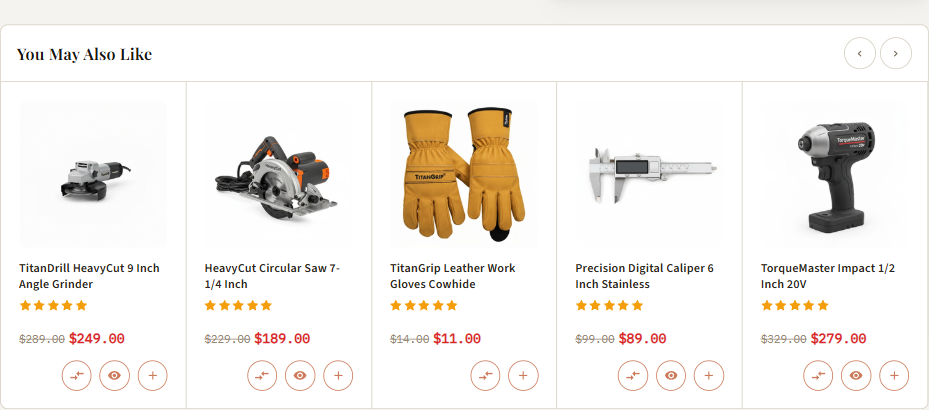
Both the cart page and the cart drawer can show a You May Also Like section. It pulls BigCommerce related products for the items currently in the cart — that is, the related products you assign to each product (or the store's automatic related products) — aggregated across all cart items and de-duplicated so nothing already in the cart is suggested.
The heading text You May Also Like comes from the theme's language strings (lang/en.json key eshopping.crosssell.heading) and is shared by both the cart page and the cart drawer. To change it, edit that key (or, on a published store, translate it via BigCommerce admin → Storefront → My Themes → ⋯ → Edit Theme Files → lang/en.json).
Configure the counts
— how many related products to show on each surface. Field id:
eshopping-crosssell-count. Format: two numberspage,drawer(set either to0to hide that surface; clear the whole field to disable cross-sell everywhere). Default:6,4.
This field takes two numbers separated by a comma:
- The first number is how many products to show on the cart page.
- The second number is how many to show in the cart drawer.
Example (the demo default for all four stores):
Set either number to 0 to turn that surface's cross-sell off.
Widget area below the cart
The cart page exposes one widget region named cart_below_totals, which renders below the cart items and the cross-sell section. You can drop an AI HTML Generator | PapaThemes widget here to add custom content — for example a short value-prop list:
<ul>
  <li>Free shipping on qualifying orders</li>
  <li>30-day no-questions returns</li>
  <li>Volume pricing on bulk orders</li>
</ul>
.papathemes-ai-widget-… { … }
…your HTML…
</style>
Note
This widget area exists on the cart page only. The cart drawer does not accept widgets.
Trust elements on the cart
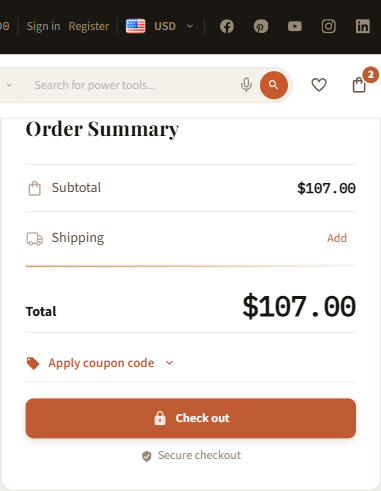
The cart page's order-summary box shows a small trust cue under the checkout button — a lock icon on the checkout button plus a Secure checkout line with a shield icon. These are built into the theme; their wording comes from the language strings cart.checkout.button and cart.checkout.secure in lang/en.json.
Bulk order mode
Not a cart-page feature
Bulk order mode is a product-listing feature, not a cart feature. It adds a "bulk order" toggle to the action bar on category, brand, and search listing pages (and dedicated bulk-order pages), letting shoppers add many products from a quick table. It does not appear on the cart page or in the cart drawer.
See the category page documentation for how the bulk-order table behaves.
Cart goal bar — demo store values
The four demo stores all ship with a populated multi-tier goal bar and the same cross-sell counts (6,4):
| Variant | Goal bar tiers |
|---|---|
| Industrial | 50|shipping|Free Shipping,100|discount|10% Off,150|gift|Free Gift |
| Auto Parts | 50|shipping|Free Shipping,100|discount|10% Off,200|gift|Free Gift |
| Packaging | 75|shipping|Free Shipping,150|discount|10% Off,300|gift|Free Samples |
| Electronics | 30|shipping|Free Shipping,75|discount|5% Off,150|gift|Free Accessory |