Category Page
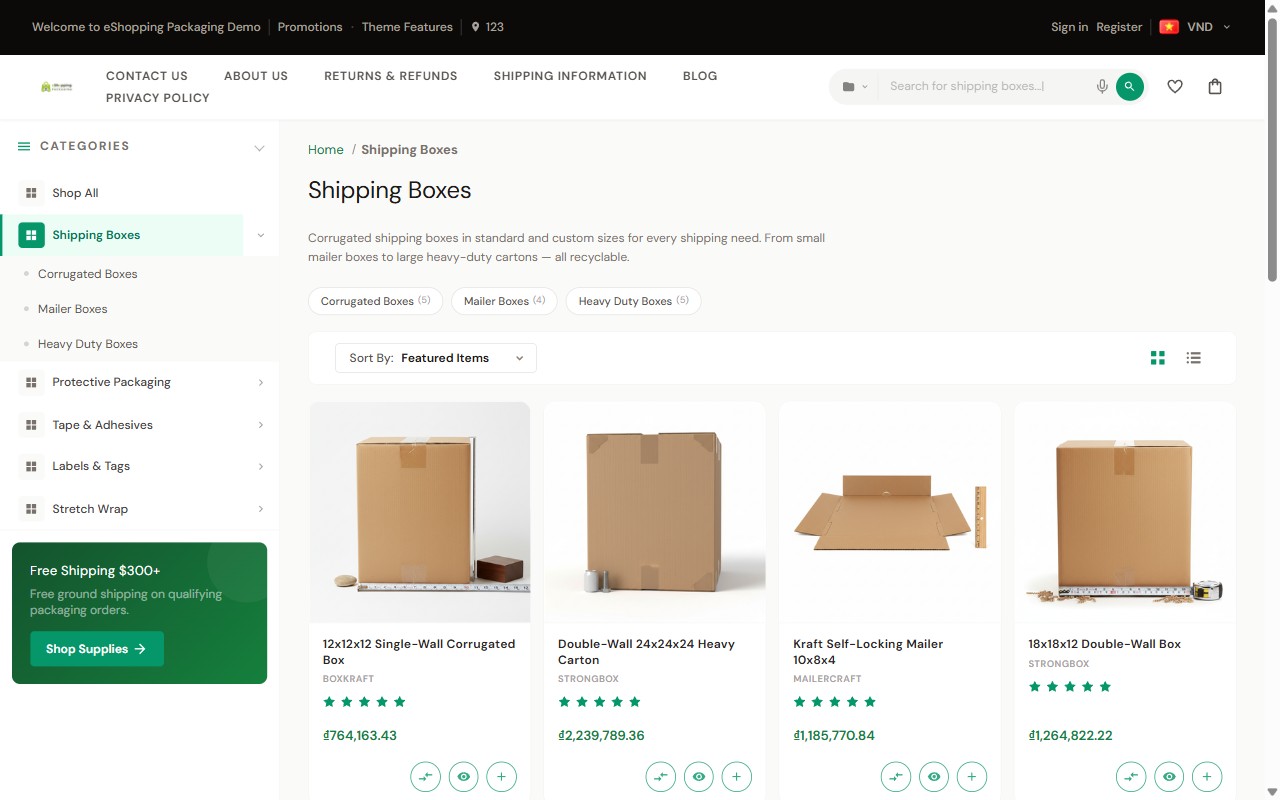
The category page is what shoppers land on when they click a category in the nav. eShopping's category page has 3 zones:
- Header — name, description, optional banner
- Sidebar — categories tree + filters (see Sidebar)
- Product grid — the products with the sort + toolbar above
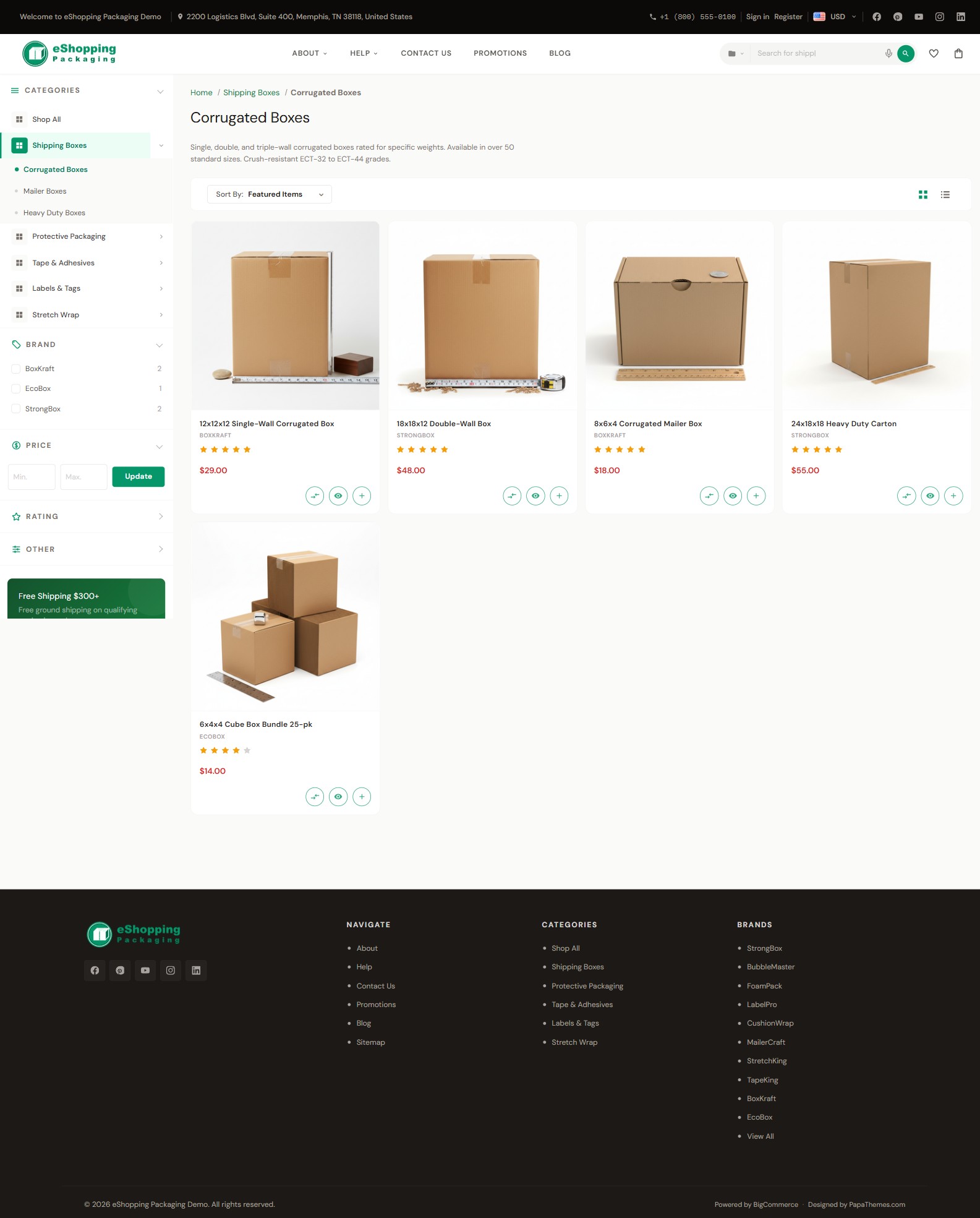
Header
Edit the category title, description, and banner in Catalog → Categories → (edit a category):
| Field | Effect |
|---|---|
| Name | The H1 |
| Page description | Rich-text block shown under the H1 — use it for SEO |
| Header image | Wide banner shown above the description (wide landscape crop; BigCommerce scales it to the container width) |
To hide the page heading globally:
Theme Editor → Global → Pages → Hide category page heading ✅.
Note
This is the category-specific toggle. The generic Hide page heading (hide_page_heading) under the same Global → Pages group affects other page types, not the category H1.
Number of products per page
Theme Editor → Products → Number of products displayed → Category page — default 12. Set whatever value suits your catalog.
Sort & toolbar

Above the grid is a toolbar with:
| Control | Options |
|---|---|
| Sort by | Featured Items · Newest Items · Best Selling · A to Z · Z to A · By Review · Price: Ascending · Price: Descending |
| Grid / Bulk-order toggle | Switches the listing between the standard product grid and the bulk-order table |
Note
Relevance is added to the Sort by list only on search / result pages — it does not appear on a standard category page.
The Grid / Bulk-order toggle (two icon buttons) appears only when bulk-order mode is enabled. It is not a generic grid/list view switch — the second option is the B2B bulk-order table, not a "list" layout. See Bulk-order mode below.
To set the default listing layout, go to Theme Editor → Global → Products → Display style and choose Show products in a grid or Show products in bulk order.
Faceted filters (Price, Brand, Rating, Custom)
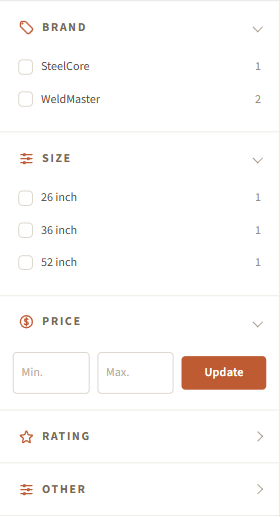
Powered by BigCommerce — enable in Settings → Product Filtering, then per-attribute toggles in Catalog → Product Filtering.
The sidebar renders each enabled filter as a collapsible group:
| Filter type | Render |
|---|---|
| Price | Range form (min / max) |
| Brand, Rating, and any product attribute (Color, Size, custom fields…) | Checkbox list |
Picking a value updates the grid via AJAX and adds a removable chip at the top of the products.
Filter chips (active filters)

When the user picks a filter, eShopping renders an active-filter chip at the top of the grid. Clicking the × on a chip removes that filter. This is automatic — no setup needed.
Mobile filter drawer
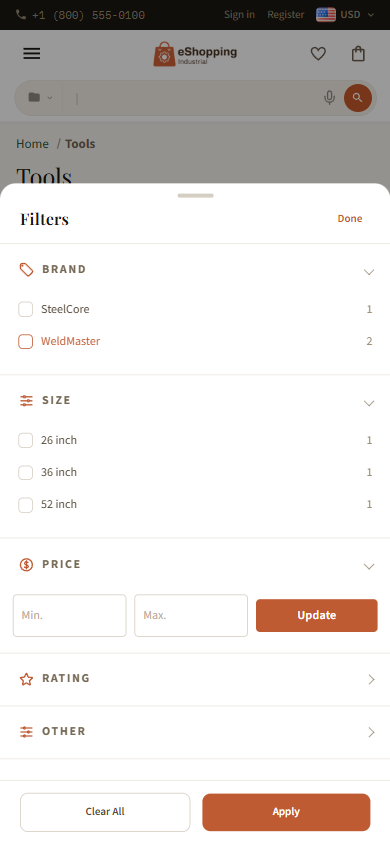
Below 1024 px the sidebar collapses into a bottom-sheet that opens with a Filter button at the top. Categories, filters, and promo cards are all preserved.
The Filter button only appears when the category actually has faceted filters enabled (or when shop-by-price is on). If a category has no enabled filters and shop-by-price is off, there is no filter drawer to open, so no Filter button is shown — on any screen size.
Sub-category chips

Whenever a category has sub-categories, eShopping shows them as a scrollable row of chips at the top of the grid (e.g. "Indoor", "Outdoor", "Heavy duty"), each linking to the sub-category. Clicking a chip drills into that sub-category.
This is independent of faceted filters — sub-category chips and sidebar filters can appear at the same time. The chips show whenever sub-categories exist; the sidebar filters show whenever filters are enabled. Neither one disables the other.
Sidebar promo card
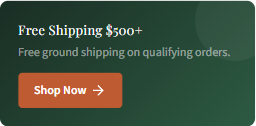
The sidebar can show a small promo card (heading, one line of copy, and a button) below the filters. It is also carried into the mobile filter drawer.
.papathemes-ai-widget-… { … }
…your HTML…
</style>
Note
All four demo stores ship a per-store value for Sidebar Promo Text (e.g. the autoparts store uses Free Shipping $250+|…|Shop Parts|/shipping/). Edit it per store in the Theme Editor.
Category page widgets
Each category page exposes these widget regions you can drop content into:
Note
The category_below_header region is only rendered when Hide category page heading is off (see Header).
Page Builder → Category page → drop in an AI HTML Generator | PapaThemes widget, or use the Banner or Accordion widgets from the PapaThemes Widgets app (check the app for the exact widget names available in your store).
.papathemes-ai-widget-… { … }
…your HTML…
</style>
Bulk-order mode (B2B)
eShopping can switch the category page into bulk-order mode — a table view with quantity inputs on every row and a single "Add to cart" at the bottom. See Bulk Order.
Toggle: Theme Editor → eShopping Theme → Bulk Order → Show bulk order mode ✅.
Hiding the breadcrumbs
Theme Editor → Global → Pages → Hide breadcrumbs ✅.
Defaults
None of the four demo stores override the category-page layout settings, so they all inherit the theme defaults below. (The Sidebar Promo Text is the exception — each store ships its own value; see Sidebar promo card.)
| Setting | Schema id | Value |
|---|---|---|
| Products per page | categorypage_products_per_page |
12 |
| Display style | product_list_display_mode |
Show products in a grid (grid) |
| Bulk-order mode | eshopping-show-bulk-order-mode |
Available (toggle on) |
| Hide category page heading | hide_category_page_heading |
Off (heading shown) |
| Hide breadcrumbs | hide_breadcrumbs |
Off (breadcrumbs shown) |
| Show "Shop by Price" in filters | shop_by_price_visibility |
On |
Change any of them per store in the Theme Editor as described in the sections above.