Step 1 — Install the eShopping Theme
eShopping is delivered to you as a .zip file by PapaThemes. Follow Option A to install it — that is the standard way to get eShopping onto your store. Use Option B only if you obtained eShopping through the BigCommerce Theme Marketplace.
Option A — Upload the theme .zip file (recommended)
- Download the
eShopping-x.x.x.zipfile we sent you. Save it somewhere you can find it (don't unzip — BigCommerce wants the.zipitself). - In your BigCommerce admin panel go to Storefront → My Themes.
- Click the Upload theme button in the top-right corner.
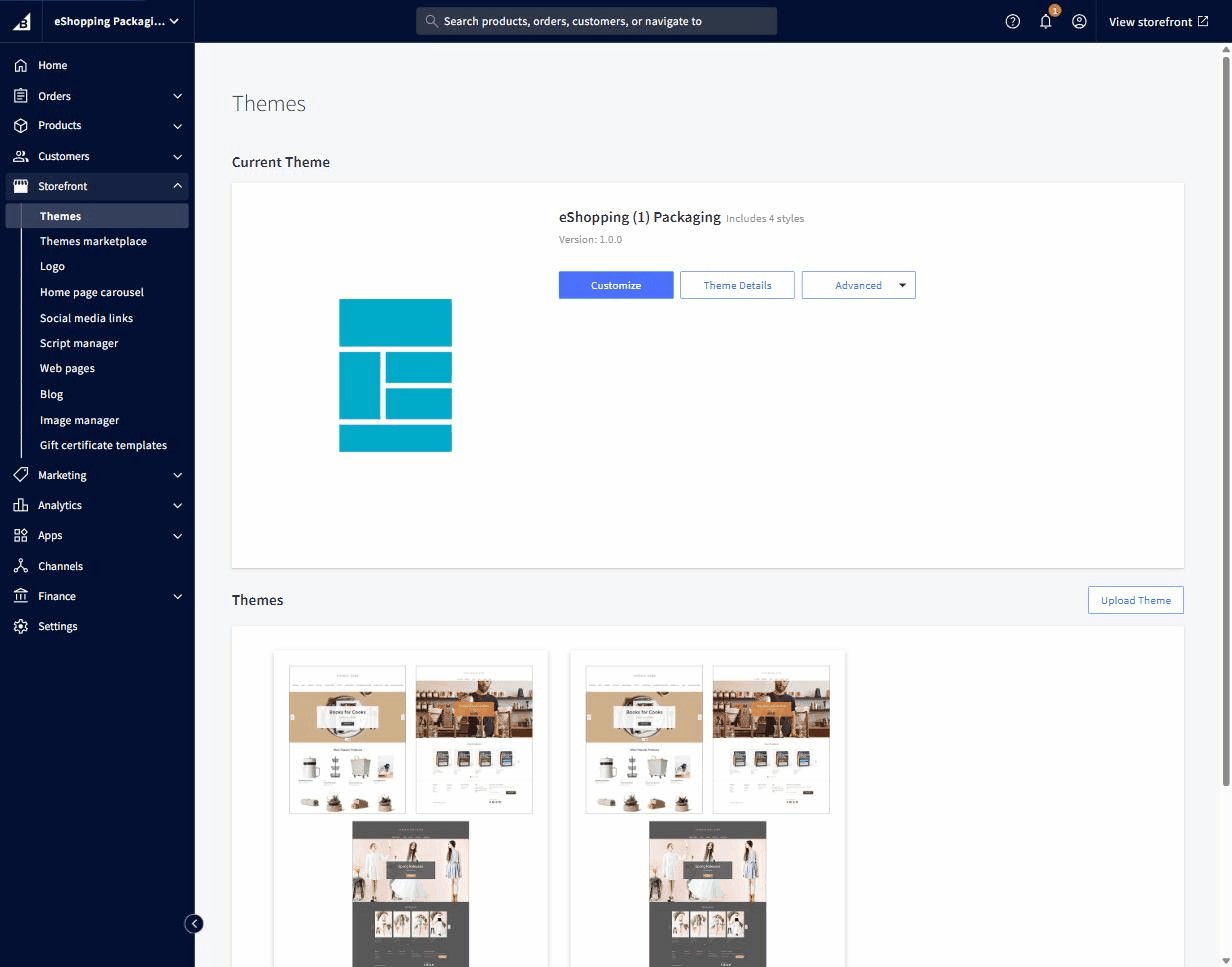
- Drag the
.zipfile into the upload area (or click Browse and pick it). Wait for the upload to finish — large themes can take 1–2 minutes. - Once the upload succeeds, the theme will appear under My Themes. Click Apply on its thumbnail.
!!! warning "Apply only switches the visual layout" Applying a theme does not delete any products, orders, customers, or apps. If you change your mind, you can switch back to your old theme at any time with one click.
Option B — Install from the BigCommerce Theme Marketplace
Use this option only if you obtained eShopping through the BigCommerce Theme Marketplace.
- In your BigCommerce admin panel go to Storefront → My Themes.
- Click the Theme Marketplace tab at the top of the page.
- Find the eShopping theme listing and open it.
- Click Add to my themes (free themes) or complete the purchase (paid themes).
- After the theme is added, go back to Storefront → My Themes. You'll see eShopping listed under My Themes.
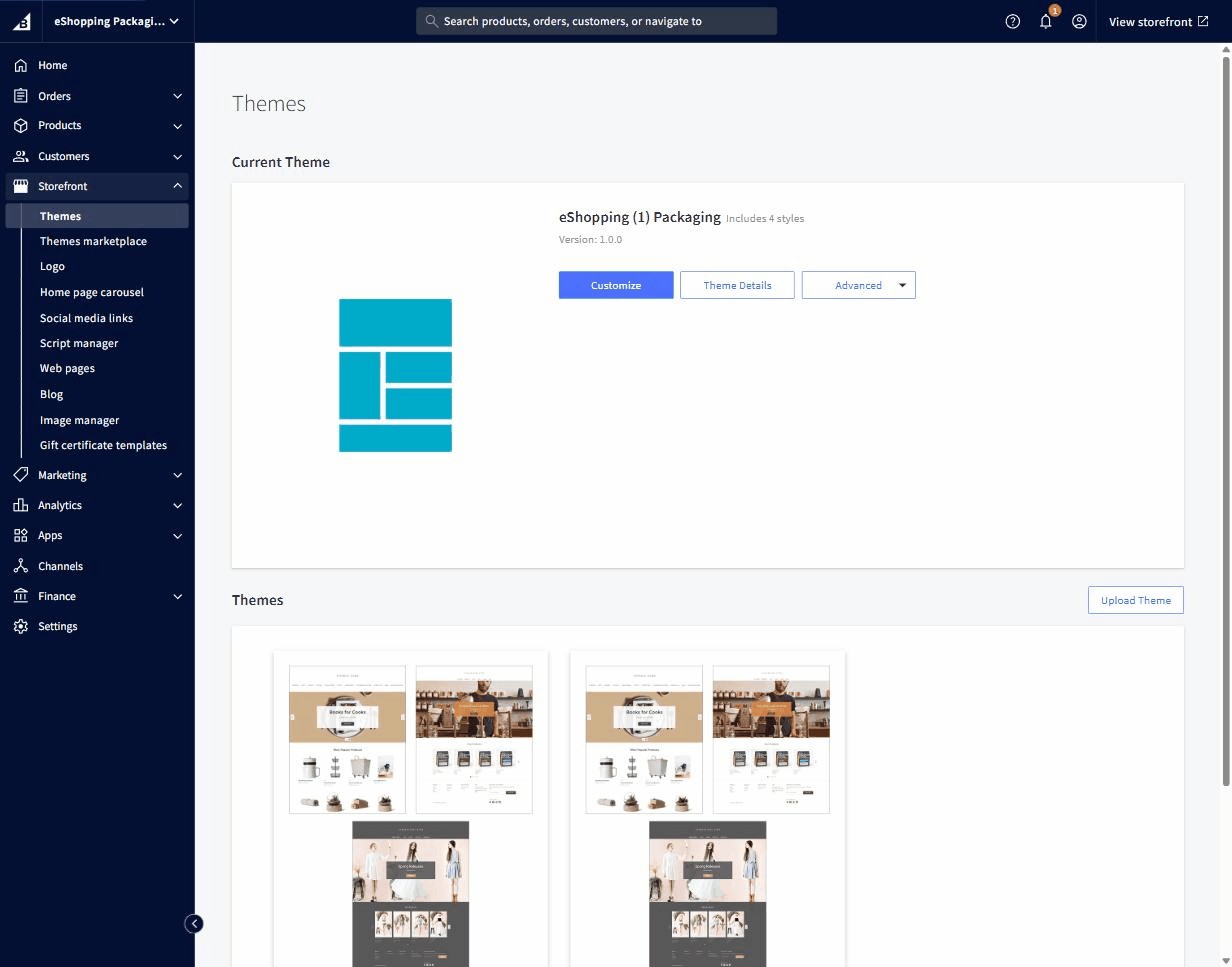
- Click Apply to make eShopping your active theme.
Multi-storefront stores
If you have more than one storefront (channel), open the channel switcher at the top of the page and apply the theme to each channel separately. Each channel keeps its own copy of the theme, its own customizations, and its own widgets.
Confirm the theme is active
- Go to Storefront → My Themes.
- The eShopping thumbnail must show Current Theme at the top.
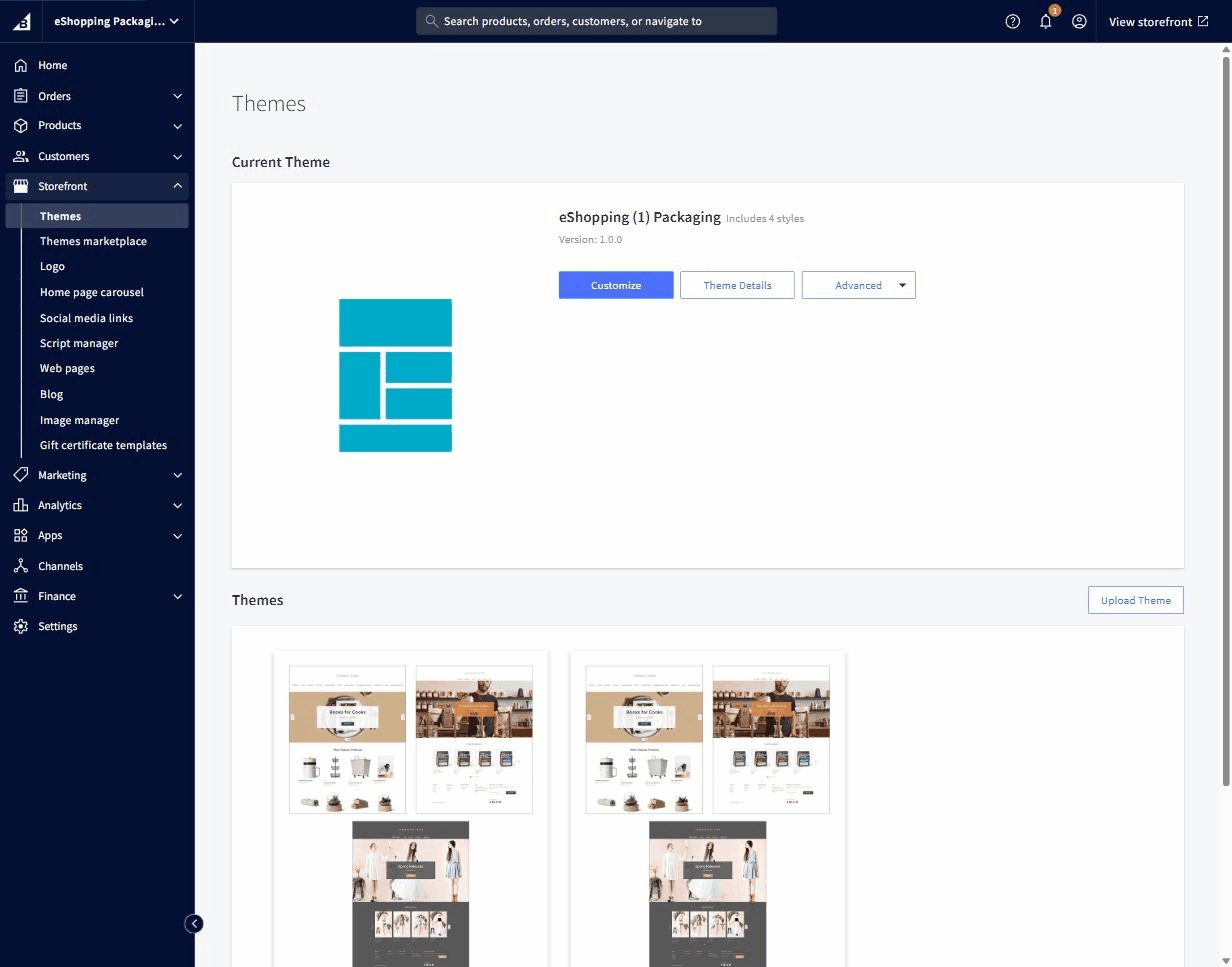
- Open your storefront URL in a new tab — you should see the default eShopping layout (sandy/cream background, terra-orange accents, top bar, sticky main nav, sidebar on category pages).
If you see the old theme instead, give it 30 seconds and refresh — BigCommerce takes a moment to publish the change.
Make a backup copy of the theme (optional but recommended)
Before you start customizing, make a copy so you always have a clean version to fall back on:
- In Storefront → My Themes find the eShopping card.
- Click the ⋯ More options menu on the card.
- Click Make a copy.
- Rename the copy something like
eShopping — clean backup.
You'll always have the un-touched theme available if you ever want to start over.