Home Page — Overview
The eShopping home page is composed of stackable sections. You can show, hide, or insert widgets between each section without coding.
Sections (top to bottom)
In the Theme Editor, open the eShopping Theme → Homepage Sections group to find the show/hide controls for each section.
| Order | Section | How it's controlled | Content source |
|---|---|---|---|
| 1 | BigCommerce top banner | Marketing → Banners | Native |
| 2 | Header (top bar + main nav) | Always on | Built-in |
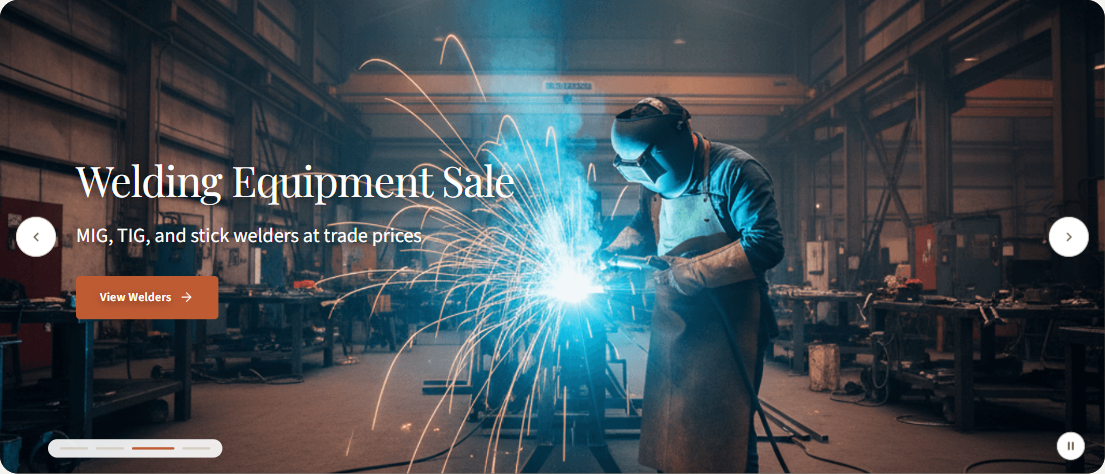
| 3 | Hero | BigCommerce's Show carousel setting on, with at least one carousel slide | Uses BigCommerce's home-page carousel (Storefront → Home Page Carousel) for slide content |
| 4 | Trust strip (4 icon+text columns) | Show trust strip toggle + trust text setting | Built-in |
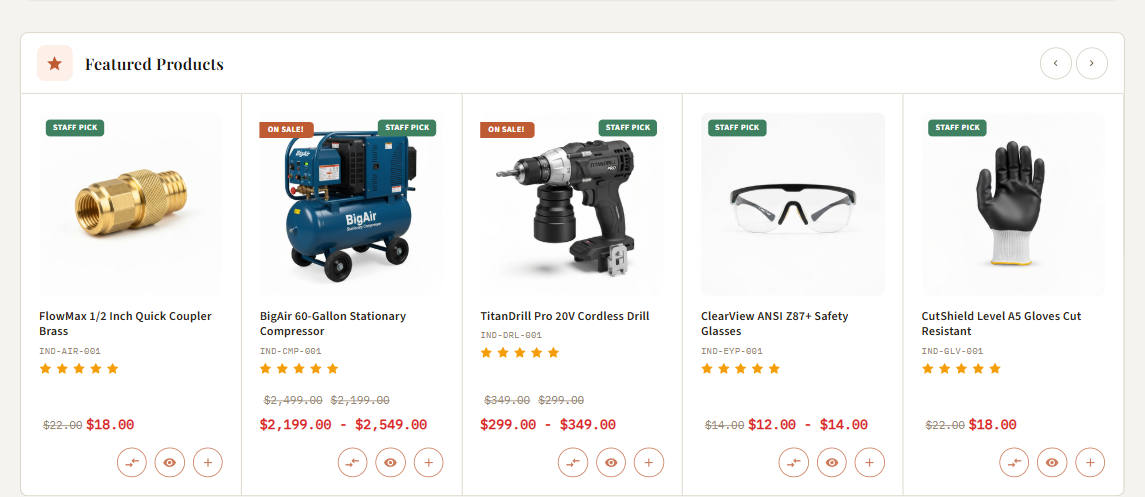
| 5 | Featured Products slider | Show Featured Products toggle | Pulls from products flagged as Featured |
| 6 | Bestselling Products slider | Show Best Sellers toggle | Pulls from BigCommerce's bestseller list |
| 7 | New Arrivals slider | Show new arrivals toggle | Pulls from BigCommerce's newest list |
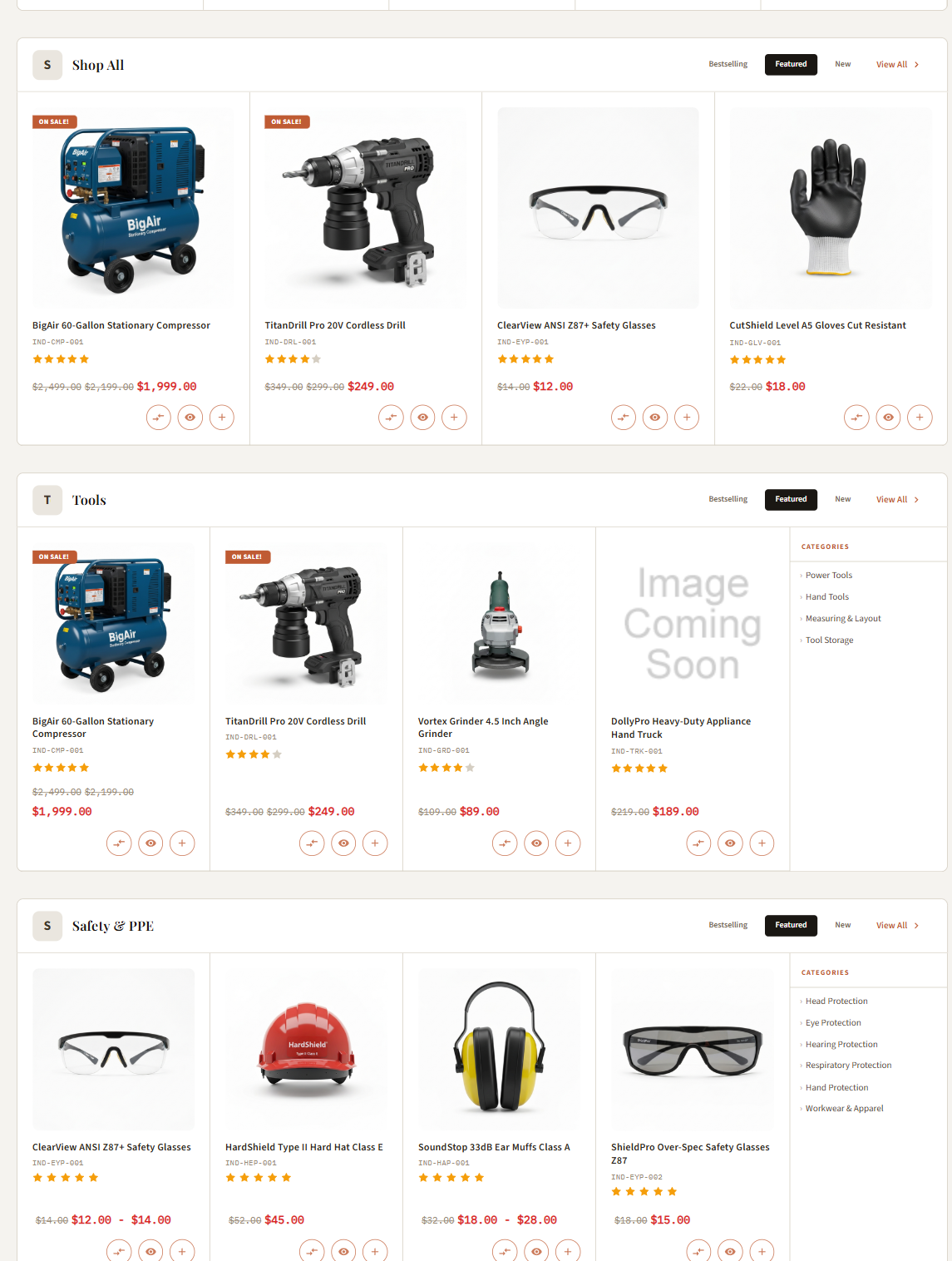
| 8 | Products by Category tabs | Show categories toggle + chosen category IDs | Built-in |
| 9 | Brands carousel | Set the homepage brands limit above 0 | All brands with logos |
| 10 | Blog posts grid | Set the homepage blog posts count above 0 | BigCommerce blog posts |
| 11 | Newsletter signup | Show newsletter toggle + newsletter text setting plus the store's built-in newsletter subscription setting being enabled in BigCommerce admin | Built-in |
| 12 | Footer | Always on | Built-in layout; the brand description / tagline column is an AI HTML Generator | PapaThemes widget in the footer-description region (added by the demo widget import) |
After most sections there is a widget region you can insert into — but not every gap has one. The full list with placement is in the Widget regions reference.
What the sections look like
The shared structure on the live storefront, top to bottom (shots from the Industrial demo — the same layout renders in every variant):



Marketing sections — delivered as widgets (not built-in)
The richer marketing blocks you see in the demos are not part of the theme — they are AI HTML Generator | PapaThemes widgets placed into home-page regions via Page Builder, and they arrive when you import the demo widgets. This widget is provided by the PapaThemes app, so install that app for the imported blocks to render fully. You can freely edit, reorder, or delete them without touching theme code.
Each demo store places its marketing AI HTML Generator widgets into two regions — the five widget types are identical across all four demos, and only the copy inside each block differs per store:
| Region | Where it renders | Widgets in the demos |
|---|---|---|
home_below_products_by_category |
After the Products-by-Category tabs, before the Brands carousel | Three AI HTML Generator widgets: a Why Choose Us value-proposition block, a Customer Reviews block, and a Resources block |
home_below_newsletter |
After the Newsletter, before the SEO block | Two AI HTML Generator widgets: an About block and a Talk to an Expert block |
All four demos use this same five-widget layout (three above, two below) — only the copy inside each widget differs per store. To edit one: Page Builder → Home → click the widget → edit its HTML. To add your own, drag an AI HTML Generator | PapaThemes widget (or any PapaThemes widget) into any of the home regions listed in the Widget regions reference.
What the four demos actually show
All four demo stores ship with the same home-page structure — they differ only in colors, copy, products, and the wording of the marketing widgets. In top-to-bottom order every demo home shows:
- Hero
- Trust strip
- Featured Products slider
- New Arrivals slider
- Products by Category
- AI HTML Generator widgets — three blocks: Why Choose Us value-proposition callout, Customer Reviews, and Resources (store-specific copy)
- Brands carousel
- Blog posts
- Newsletter
- AI HTML Generator widgets — two blocks: an About ("Your complete … source") block and a Talk to an Expert block (store-specific copy)
Not visible in any demo: the Bestselling slider doesn't appear on any of the four demo home pages. Its toggle is on, but the demos have no bestseller sales data yet, so it doesn't render — it appears automatically once your store accumulates sales.
Each store localizes the same set of widgets — the Why Choose Us heading and the About heading differ as follows:
| Store | Why Choose Us heading (below Products-by-Category) | About heading (below Newsletter) |
|---|---|---|
| Industrial | Industrial Tools That Last. Pricing That… | Your Complete Industrial Supply Source |
| Auto Parts | Auto Parts That Fit. Pricing That Drives… | Your Complete Auto Parts Source |
| Electronics | Tech That Performs. Pricing That Powers Up. | Your Complete Consumer Electronics Source |
| Packaging | Packaging That Protects. Pricing That… | Your Complete Shipping Supplies Source |
Each variant guide has the exact step-by-step:
Hero — built-in vs widget
eShopping's hero uses the slides uploaded via BigCommerce's Home Page Carousel (Storefront → Home Page Carousel), shown whenever the Show carousel setting is on. That's the primary, supported path.
If you need richer behaviour (per-channel hero on multi-storefront, custom slide-content fields not in BigCommerce's carousel, embedded form), drop a custom Page Builder widget (such as a banner or hero widget from the PapaThemes Beautify app) into the area just below the main menu and leave the Home Page Carousel empty (or turn off Show carousel). This is an alternative path, not the default.
Reordering sections
The built-in toggles only show / hide; they don't reorder. To reorder (e.g. New before Featured) disable both built-in sliders and replace each with a Page Builder product-slider widget (e.g. from the PapaThemes Beautify app) dragged into the position you want. Most stores don't need this — the default order matches the typical e-commerce hierarchy.
Performance tip
eShopping lazy-loads images below the fold. Enable as many sections as you need — only the visible ones consume bandwidth on first paint. The hero image is rendered eagerly (not lazy-loaded) so it paints quickly for a fast LCP.
Next
➡️ Pick your variant's recipe: